The Map
Controls, pins, your group, quick buttons, search and map styles.
Controls#
| Control | What it does |
|---|---|
| Drag / mouse wheel | Pan and zoom. The place name in the title bar and the coordinates at the bottom follow your pointer. |
| Double-click | Add a stop there (or at the icon you double-clicked). |
| Shift + click | Drop a pin there. |
| Ctrl + click | Drop the game's map pin there (Shift-click it to link it in chat, Ctrl-click it to remove it). |
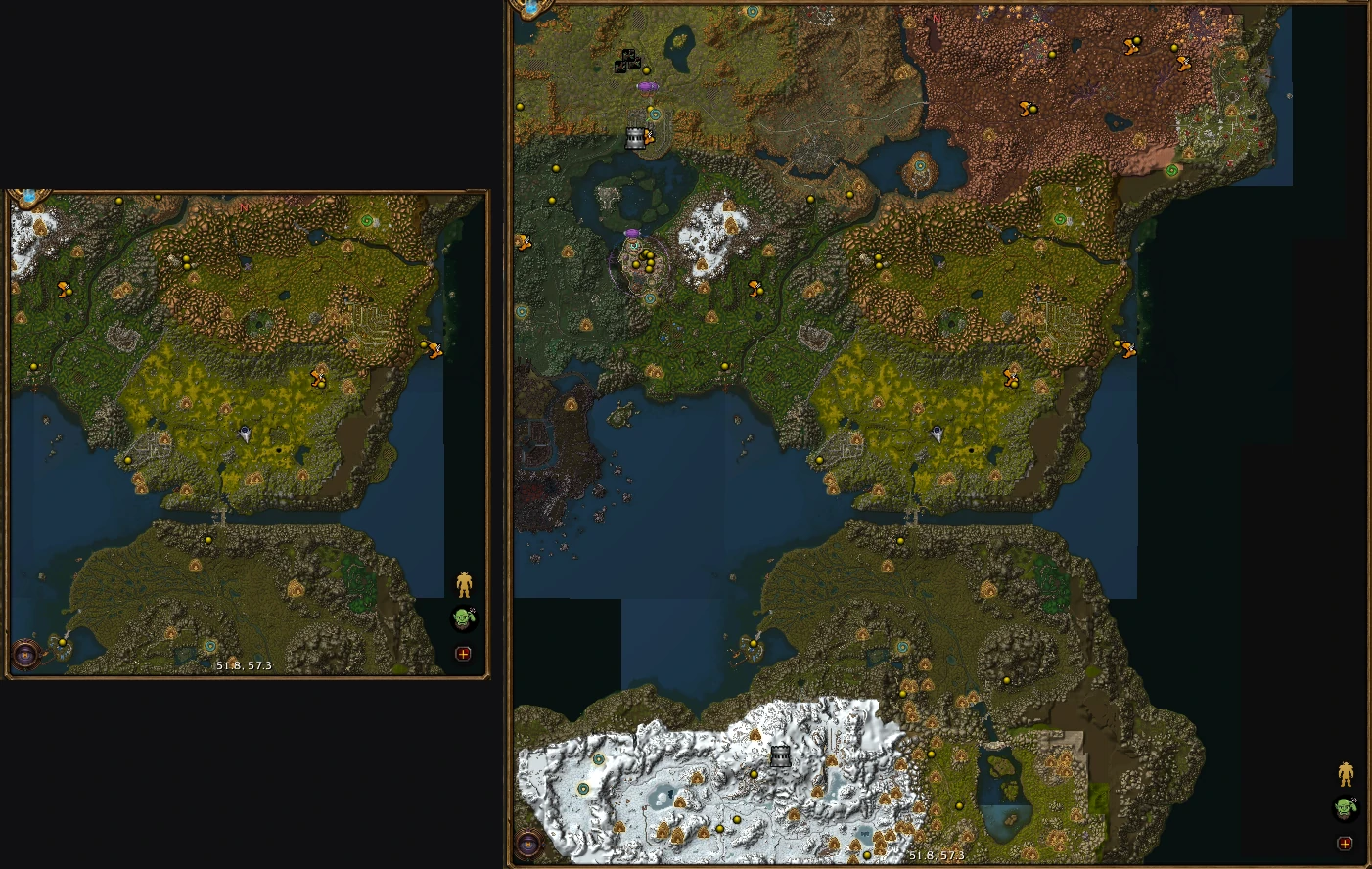
| Right-click (Terrain style) | Out to the continent's map, then the world map. On a continent's map, hover a zone for its name and levels, or click a capital's icon to open the city. Inside a building, the first right-click shows the outside. In a city with its own map (Ironforge, Undercity), it shows the land around the city, zoomed out, to look around as you like. |
| Round map button (bottom left) | Slides out the quick buttons you keep in its menu. It tucks itself away after 20 seconds untouched. |
| Target button (bottom right) | Back to where you are. |
| + button | Import, copy or send waypoints, and share your map data. |
A few nice touches:
- Hover a zone on a continent's map and it lights up, just like the game's own map, with its name and level range next to your pointer.
- Zephras Isle floats in the sky, so it's not on the world map's art. The world map shows it as a framed picture at the top instead; click it to open the island.
- Near a stop, the map zooms in smoothly so you can see exactly where it is, then back out once you're there.
- Heading-up ("Turn the map with me", Options → General): the map turns with you, and your arrow sits low on it so you see more of the road ahead.
- A bigger window shows more map. Make the map bigger (Options → General, or drag the map window's bottom-right corner: Resize from the corner, on by default, works while the map's position isn't locked) and you see more of the world at the same scale, instead of the same bit just blown up. Past the default size you can zoom out further, too.
- A panned map stays put through a /reload, and switching map style keeps the spot you were looking at.
Pins#
Mark your own spots: a herb you keep coming back to, a hidden NPC, the way into a cave.
- Shift + left-click on the map and click Create Pin.
- Give it a name and pick an icon. Any icon in the game works (it's the same list a macro uses); scroll through them with the mouse wheel.
- Where floors stack on top of each other (a dungeon, Undercity, a cave), pick its floor with the arrows. In a dungeon it starts on the floor the map is showing.
Your pin is saved when you log out, quit or /reload: if WoW crashes before then, it's lost. While something you made isn't saved yet, Save and Dismiss buttons show over Clear Route. Point at Save to see how many changes are waiting, and click it to save them (it reloads the interface). Dismiss hides both until your next change, if you'd rather take the risk; right-click it and they stay hidden until you /reload or log out, or Shift-right-click it and they stay hidden until you log out, even after a /reload. To never see them, untick Remind me to save in Options > General. Your pin shows on the map like a city location. Double-click it for a stop there (on the right floor; a pin in a dungeon puts the stop on the dungeon's entrance, since the game hides where you are inside), or right-click it to remove it. A pin on a different floor than the one you're looking at is drawn faint.
Shift-click a pin to share it: a line like [AzerothGPS Pin: Old Tree (Elwynn Forest) @0:-9465.2,63.1 #134400] goes in your chat box, and nothing is sent until you press Enter. Players with AzerothGPS see it as a link; clicking it asks whether to add the pin to their map, with its icon and floor. It works even after you've logged off.
Pins are kept for all your characters. They're yours: AzerothGPS never puts them into its own data. Share them with other players yourself, a pin at a time (Shift-click) or all at once with Copy My Map Data (see Sharing your map data). The same goes for the NPCs you've talked to, and the herbs and ore you've found.
Options → Tools: Pinning (on by default; turn it off and Shift + drag just moves the window). Options → Map: Pins shows or hides them.
On the game's minimap#
Your route shows on the game's own minimap too: the way around you, and the next stop's marker on the minimap's edge until you're close. Turn it off in Options: Route on the minimap.
Your group#
Party and raid members show up as round icons of their class, ringed in their class color. Point at one to see who it is. They don't need AzerothGPS themselves. You'll only see the ones the game gives a position for, so not inside dungeons.
Right-click a member's icon to ask them for their route (they need AzerothGPS, and they're asked first). In a group, the directions panel has a Share button to link your route in party chat; see Sharing your route.
Options → Map: Party members.
Quick buttons#
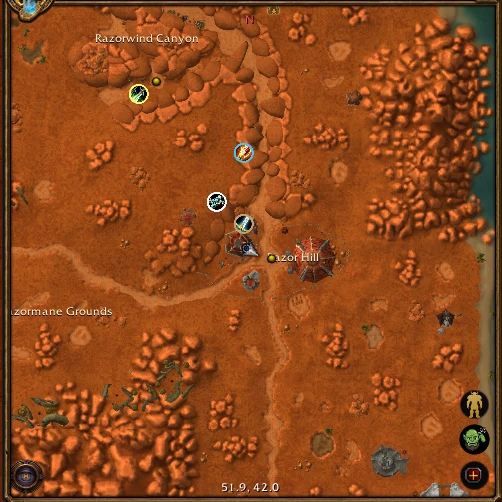
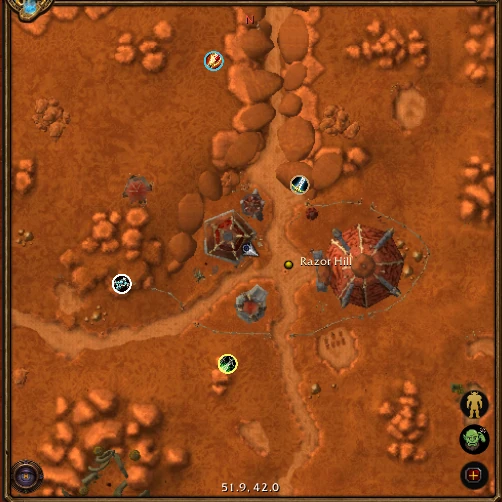
The round map button's menu holds:
- Tools: search, the quest route, the map styles and Draw a Farming Area.
- Toggles: on/off for the hearthstone, quests, quest areas, herbs, ore, city locations and dungeons (grayed out when off).
Related buttons are grouped (map styles; quests; herbs, ore and farming) and slide out next to their button.
You decide where each one lives: always shown, in the menu going up or to the right, or hidden, in whatever order you like (Options → Quick buttons).
Search#
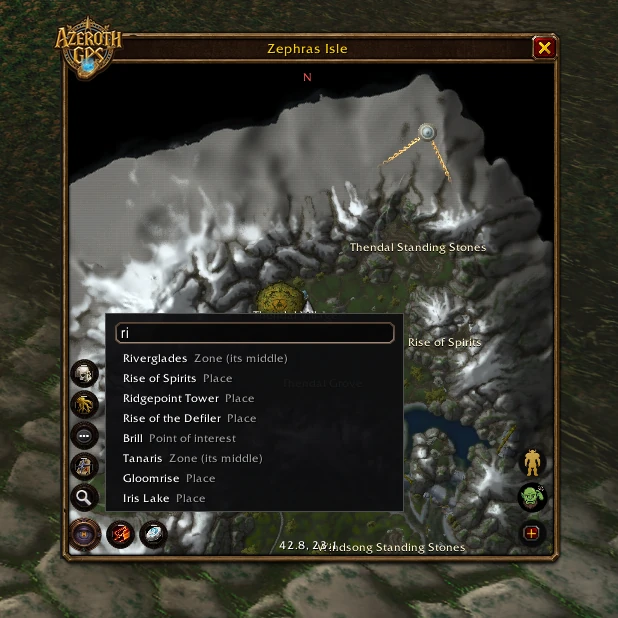
Type a few letters and pick a town, zone, landmark, flight master or dock. Each result tells you what kind of place it is.
It finds your own pins too, with where each one is ("Auction House Stormwind City"), and the city places you know from talking to a guard in your faction's capitals ("Inn Ironforge"). Picking one makes it a stop, on the right floor.
It also finds the NPCs you've talked to ("Innkeeper Renee Innkeeper, Brill"). The game doesn't tell addons where NPCs are, but when you talk to one, to chat, buy, train, take or hand in a quest, fly or bank, you're standing by it, so AzerothGPS remembers the spot for all your characters. Only one-of-a-kind NPCs count: guards and anyone you've met in two far-apart places are left out. NPCs aren't drawn on the map; search for one and pick it to make it a stop. To add NPCs you haven't met, tick /way as NPCs in the Import and Share window (+ button) and paste /way lines with their names, such as /way Tirisfal Glades 61.0 52.0 Apothecary Johaan, or paste the NPCs another player copied with Copy My Map Data. They show "(imported)" until you talk to them.
Type several words to narrow it down: each just has to start a word of the place's name or where it is. "Inn Ir" finds Ironforge's inn; "auction storm" your Stormwind auction house pin.
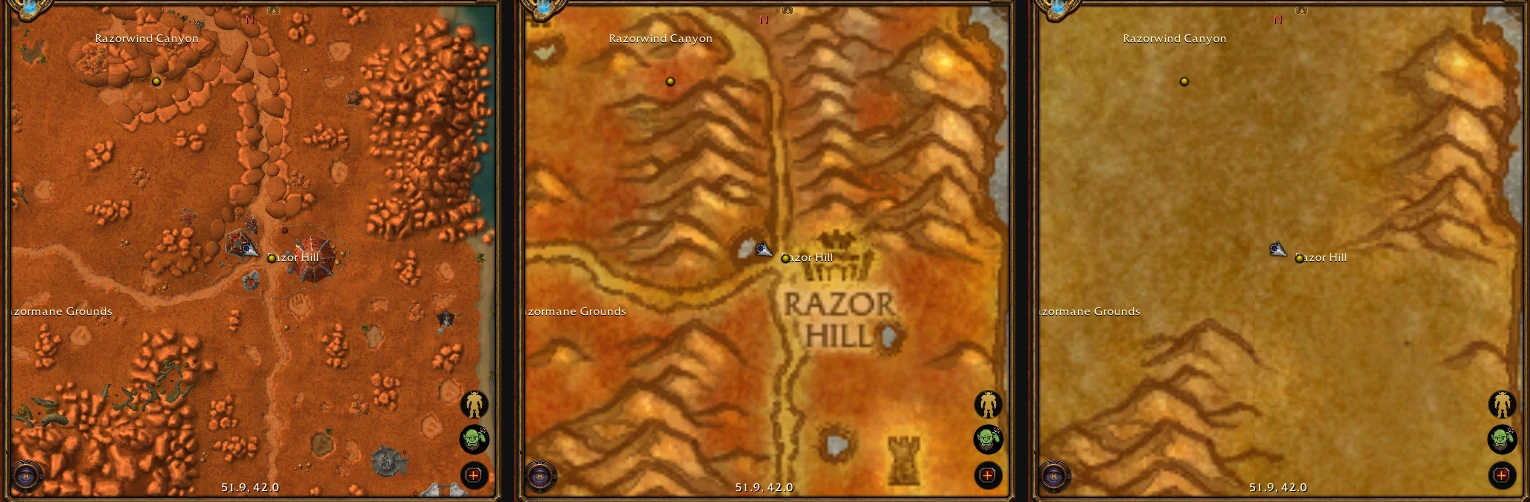
Map styles#
- Terrain: the minimap's ground art.
- World Map: the zone art.
- No Spoiler: only what you've explored. Routes still work everywhere.
Zephras Isle, WoW Forever's own island, has its own terrain map and roads, and routes take the zeppelins out there.
In cities#
In cities like Undercity, the map shows the district names (Trade Quarter, Magic Quarter...) along with your quests and the city's places. In a city with its own map (Ironforge, Undercity), that map stays up while you're in town, wherever you drag the view, and zooming out stops at the city. Right-click when you want the land outside: the terrain around the city, zoomed out, which you can drag and zoom anywhere. Recenter on yourself to get the city's map back. More in Cities and Caves.