AzerothGPS › Start here
Getting Started
Install it, make your first route, and find your way around the map window.
Installing#
- CurseForge app: search for Azeroth GPS and install it for WoW: Forever.
- By hand: grab the zip from the latest release and pull the
AzerothGPSfolder into_classic_beta_\Interface\AddOns.
After an update, log out and back in (or restart WoW) instead of just doing a /reload. New data and image files only load when you log in.
Your first route#
- The map sits at the bottom of your screen. If it's hidden, type
/agps show. - Double-click the map where you want to go. Double-click a town, flight master, dock or quest icon and the stop takes its name.
- Click Confirm Route, or just wait 5 seconds.
- Follow the line on the map, or the direction arrow.
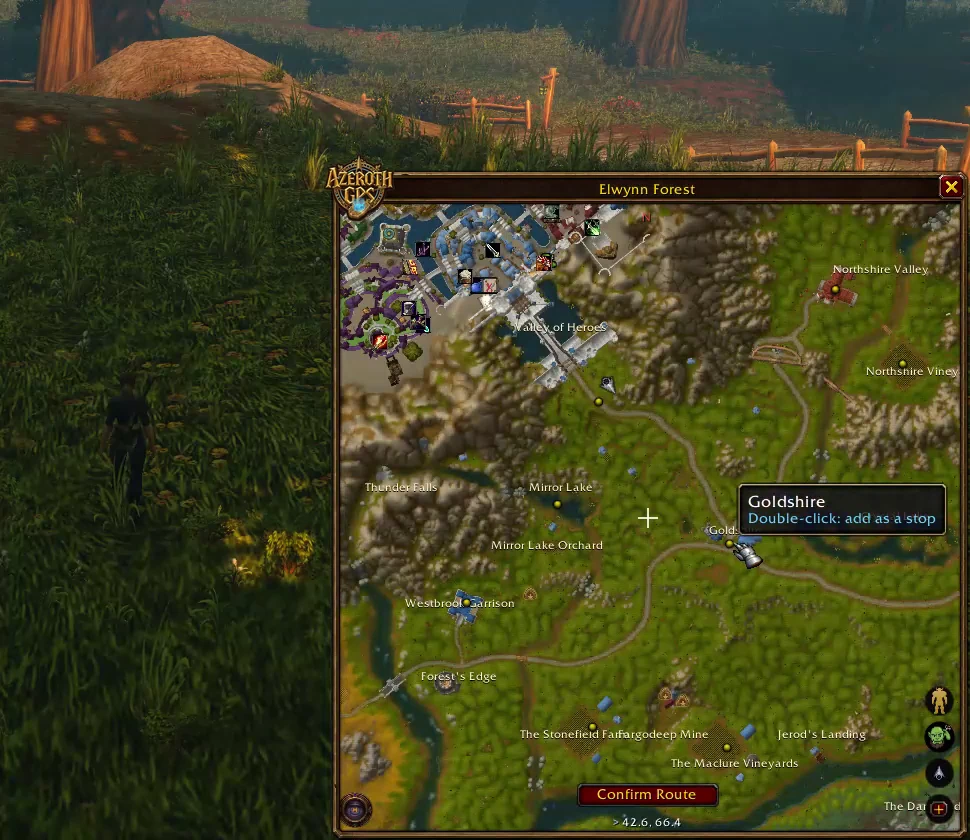
Stops wait for Confirm Route (or those 5 seconds), so you can drop a few at once before it starts.
Flight paths#
Open the flight map at any flight master once, so AzerothGPS knows which flight paths your character has. From then on, routes fly whenever that's quicker. More on that in Flights, Boats and Teleports.
Getting around the map window#
- Drag the bottom-right corner of the map window to make it bigger or smaller (Options → General: Resize from the corner, on by default; not while Lock map position is on).
- Drag to pan and use the mouse wheel to zoom. The target button (bottom right) snaps you back to where you are.
- Right-click to zoom out to the continent's map and then the world map, handy for picking somewhere far away. Inside a building or a city with its own map (Ironforge, Undercity), the first right-click shows the outside.
- The round map button (bottom left) opens the quick buttons: search, the quest route, map styles and more.
Every control is on The Map, and /agps opens the Options.