Options
Type /agps or right-click the minimap button. The options are split into pages, like the game's own settings.
General#
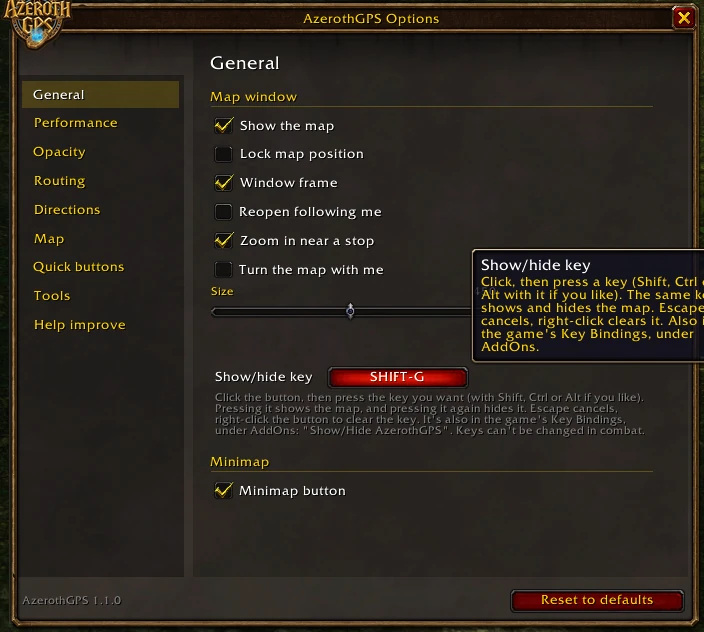
Show the map, have it follow you again when it reopens, lock it, the window frame (with the logo at its top left), zoom in near a stop, heading-up, the map's size, a key to show and hide the map, the minimap button, and Remind me to save (the map's Save and Dismiss buttons while something you made isn't saved yet; off: never).
Size goes up to your whole screen (a 4K one too); the map is square unless you tick Any shape: then the slider splits into Height and Width, and dragging the corner sets each one too. Size changes how much of the world you see, not how big things look: a bigger map shows more at the same scale, and past the default (450) you can zoom out further too. Resize from the corner (on by default) lets you drag the map window's bottom-right corner instead; it's paused while Lock map position is on and back when you unlock the map.
Performance#
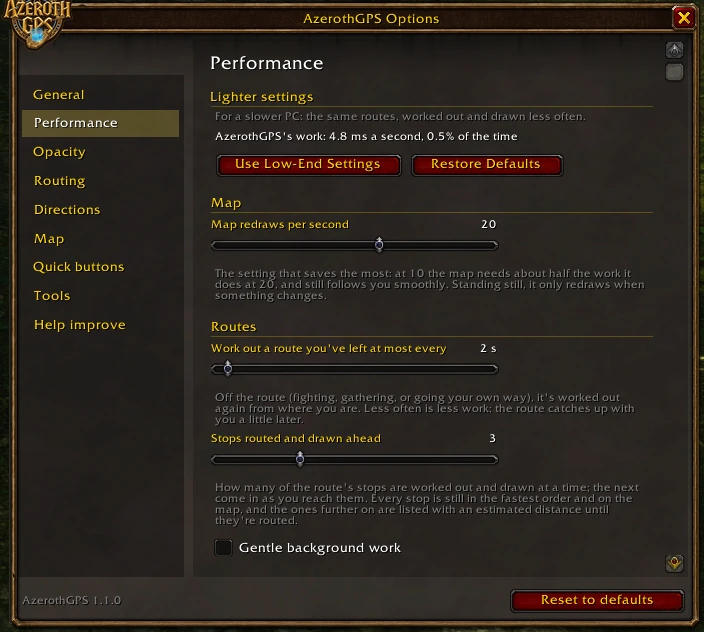
Lighter settings for an older PC: the same routes, just worked out and drawn less often. The line at the top shows how much of the time AzerothGPS is actually using, updated every couple of seconds, so you can see what each change does.
- Use Low-End Settings turns everything down at once; Restore Defaults puts it all back.
- Map redraws per second (5-30, default 20): the one that saves the most. At 10 the map needs about half the work and still follows you smoothly. Standing still, it only redraws when something changes.
- Work out a route you've left at most every (2-10 seconds, default 2): when you've gone off the route (fighting, gathering, doing your own thing), how often it's worked out again from where you are.
- Stops routed and drawn ahead (1-8, default 3): how many stops are worked out and drawn at a time; the next ones come in as you reach them. Every stop still keeps its place in the fastest order and its marker on the map.
- Gentle background work: route searches are done in smaller slices of each frame, for fewer stutters, while the first route after a /reload takes a moment longer.
- Turn the arrow every frame: turned off, the direction arrow turns 20 times a second instead, which is less work at high frame rates.
Other ways to lighten the load: fewer icons on the map (Options → Map, or the round map button), quest area outlines off, and a smaller map.
Opacity#
Map opacity, fading while you move, click-through while moving or in combat, and hiding or dimming in combat. Out of the box the map stays shown, fully opaque and clickable in combat.
Routing#
- Avoiding the other faction's towns and zones too high for your level (Staying Safe).
- Questing and the quest route's "only this zone" (Quests).
- Travel: flight paths, the hearthstone, class teleports and teleport items (Flights, Boats and Teleports).
- Stops: the fastest order (and keeping your own order in cities), and whether the panel's ✕ cancels the route.
- Zeppelins, boats and the tram: each one your faction can take, grouped by kind, with a checkbox. All on to start; untick one and routes never use it (the same as right-clicking its dock on the map).
- Accepting
/waylines, map pins clicked in chat and routes shared in game (Waypoints and Sharing).
Directions#
The direction arrow window, its lock and its background.
Map#
Right-click world map, building interiors, and what shows up: flight masters, places and docks, party members, quests, quest areas, herbs, ore, dungeons and raids, cave entrances and pins.
Route on the minimap (on by default): your route also shows on the game's own minimap, around you, with the next stop's marker (on the minimap's edge while the stop is further away). It turns with the minimap if yours rotates.
Quick buttons#
A table of where each quick button goes (always shown, or in the menu going up or to the right, or hidden) and their on/off settings. The map can't be made smaller than they need. Out of the box, Quest Route and Use Hearthstone live in the menu.
Tools and Help improve#
See Fixing the Map. Help improve is also where you pick what Copy Map Data... includes (roads, walls, routes, pins: all ticked unless you untick them). Pinning (on by default) is here too: Shift + left-click on the map to drop a pin.