Controller
The map and Options from a controller, and changing its buttons.
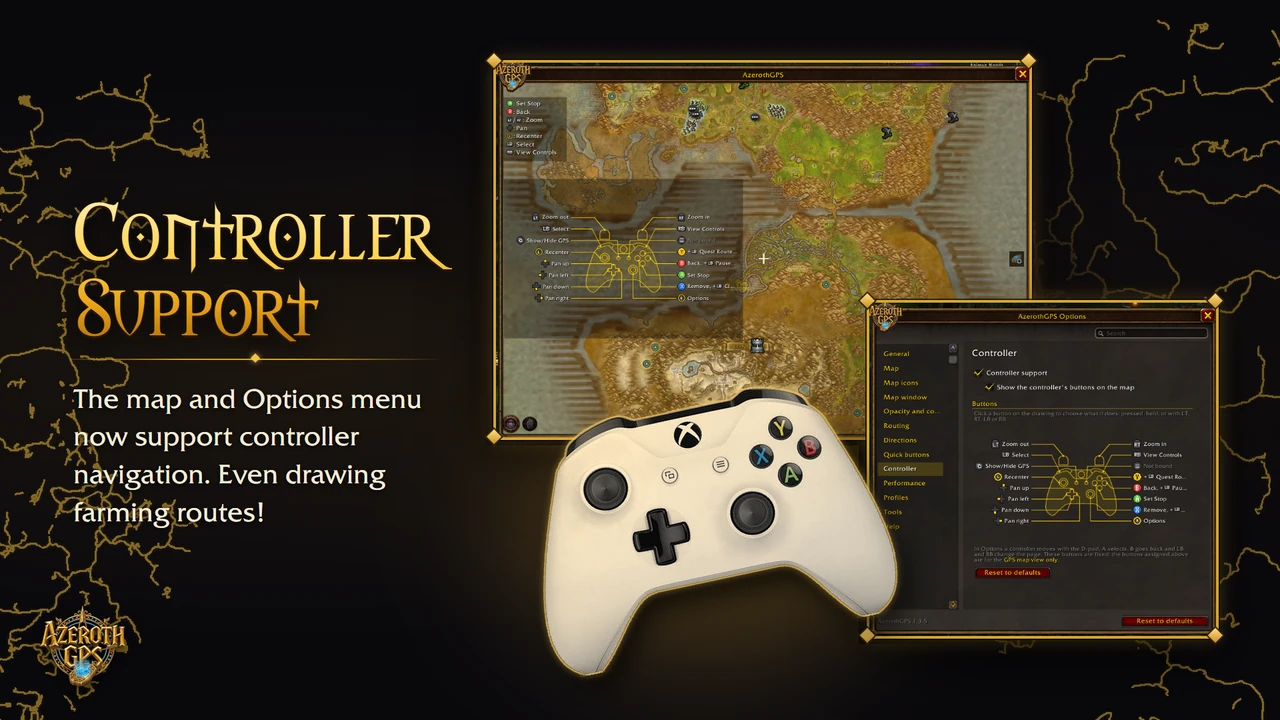
Play with a controller? The map and Options work from it too: pan, zoom, set stops, open the map menu, even draw a farming area, all without touching the mouse.
Turning it on#
It's on by default: Options > Controller > Controller support. Pick up a controller with the map open and it starts listening. Its marks (the crosshair, the button list, the icons on the buttons) show only while you're using the controller; move the mouse and they get out of the way.
On the map#
The crosshair in the middle of the map is where things happen. The default buttons:
| Button | What it does |
|---|---|
| A | Set Stop at the crosshair |
| X | Remove the stop under the crosshair |
| B | Back: closes the map menu, leaves a dungeon's, cave's or city's map, then closes the map |
| LT / RT | Zoom out / in (hold to keep going) |
| D-pad | Pan the map |
| Left stick press | Recenter on you |
| LB | Select what's under the crosshair: open a dungeon's or cave's map, or Confirm Route once you've marked your stops |
| Y | Open the map menu |
| RB | View Controls: a drawing of your controller over the map, showing every button |
| Right stick press | Options |
| LB + X | Clear Route |
| LB + Y | Quest Route |
| LB + B | Pause Routing |
- Button list: the map lists your main buttons on its left (turn it off with Show the controller's buttons on the map).
- Button hints: when a button can do something right now, its icon shows on what it acts on. The map's bottom button shows A until you've marked a stop, LB once you have (Confirm Route), and LB + X once the route is up (Clear Route). A also shows beside a "Remove?" question to confirm it.
- Tooltips at the crosshair: pan the crosshair over an icon (ours, Questie's and other addons') or a quest area and its tooltip shows, the same as hovering it with the mouse.
- Inside buildings and caves: zoomed in, the crosshair over a building or cave shows its inside map and the NPCs in it.
- Drawing farming areas: start a farming area from the map menu and draw it with the crosshair. A drops each corner, X takes the last one back, Y finishes it and B stops drawing.
The map menu#
Y opens it. On the D-pad, up and down move along the column of buttons and left and right along the bottom row. A opens a group (Quick Find too), and B steps back out of it.
Searching#
Search Places works from the controller too, with an on-screen keyboard. A purple legend over the search shows its buttons: the D-pad chooses a result, A picks it as a stop, X opens the keyboard and B closes the search.
On the keyboard (its legend turns green), the D-pad moves between the keys, A types the lit one, B deletes a letter and X or Done closes it. Press up from the top row to go back to the results. The keys follow your game's language: German, French, Spanish, Italian, Portuguese, Russian and Korean have their own layouts, and Chinese has Latin keys for now.
Start walking and the search and the keyboard close, so they never get in your way.
Find Herbs and Ore#
Find Herbs and Ore works the same way: D-pad up and down choose a herb or vein, left and right go through the buttons along its bottom, A picks and B closes. X opens the keyboard to type a name.
In Options#
The D-pad moves between options, A selects, B goes back, and LB and RB change the page. Press up from the top to reach the search box, then A opens the same on-screen keyboard right under it, and the settings filter as you type. These buttons are fixed. The buttons you set in Options are for the GPS map only.
Changing the buttons#
Options > Controller draws your controller in gold with what each button does. Click a button to choose its action: pressed on its own, held, or together with LT, RT, LB or RB. Every action also works as a macro (/agps pad ...), and Options shows each one's line, so you can put any of them on a button your own way. Reset to defaults puts the buttons above back.
Opening the map from the controller#
Show/Hide GPS opens and closes the map. It can go on a controller button, except with the game's own controller UI turned on: the game keeps its buttons for its own panels then. In that case, make a macro with /agps toggle and put it on a controller button instead. Options reminds you when that's the case.