
Street View
Opening one#
- Drag the figure off the AzerothGPS map onto a road. While you drag, the road network lights up (brightest under your pointer) and the street views show as dots. Let go and the nearest one opens.
- Click the figure, or type
/sv here, to see the street view nearest you. - Know its id?
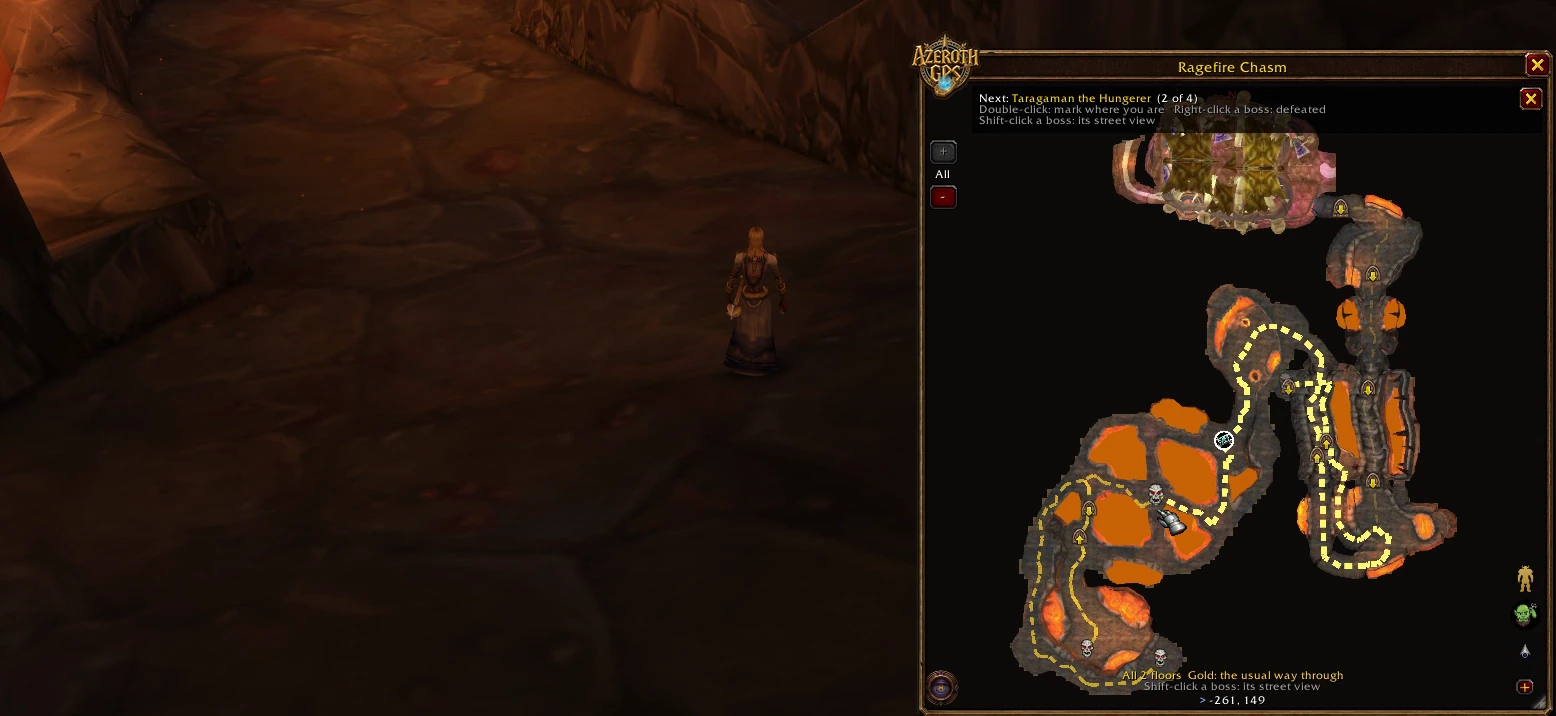
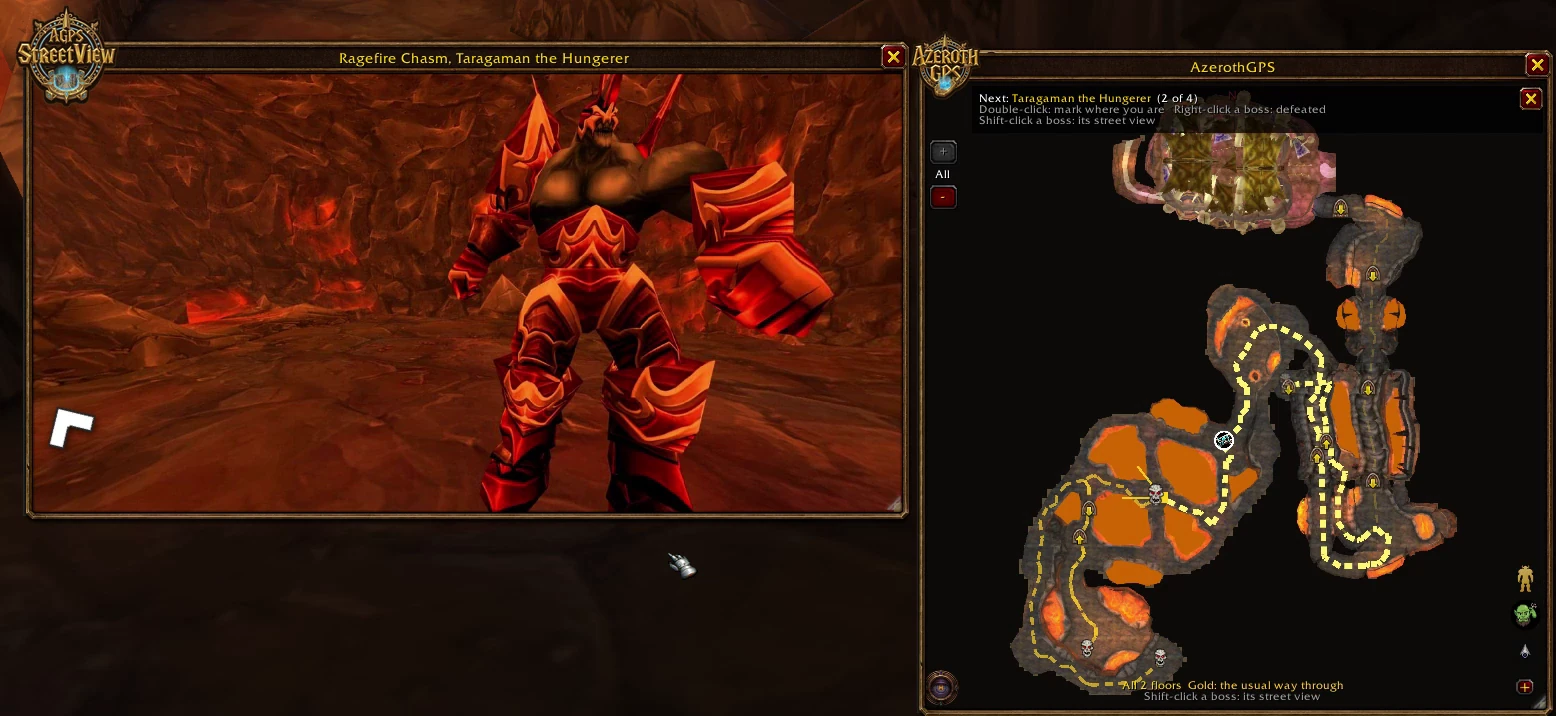
/sv open <id>opens it straight away (/sv listlists them all). - In a dungeon, Shift-click a boss on its map to see him standing in his room (with AzerothGPS 1.1.0 or later; the top of the map says so when it works). Dragging the figure onto a dungeon's map works too.
Looking around#
- Drag the picture to look around. The scenery follows your pointer, up and down too.
- The mouse wheel zooms in and out.
- The white arrows on the ground point along the roads to the next street views. Click one to walk that way. They hide while you're dragging so they don't get in the way.
- The window's title tells you the zone and the map coordinates. Drag the title bar to move the window, drag the corner to resize it, and press Escape to close it.
On the map#
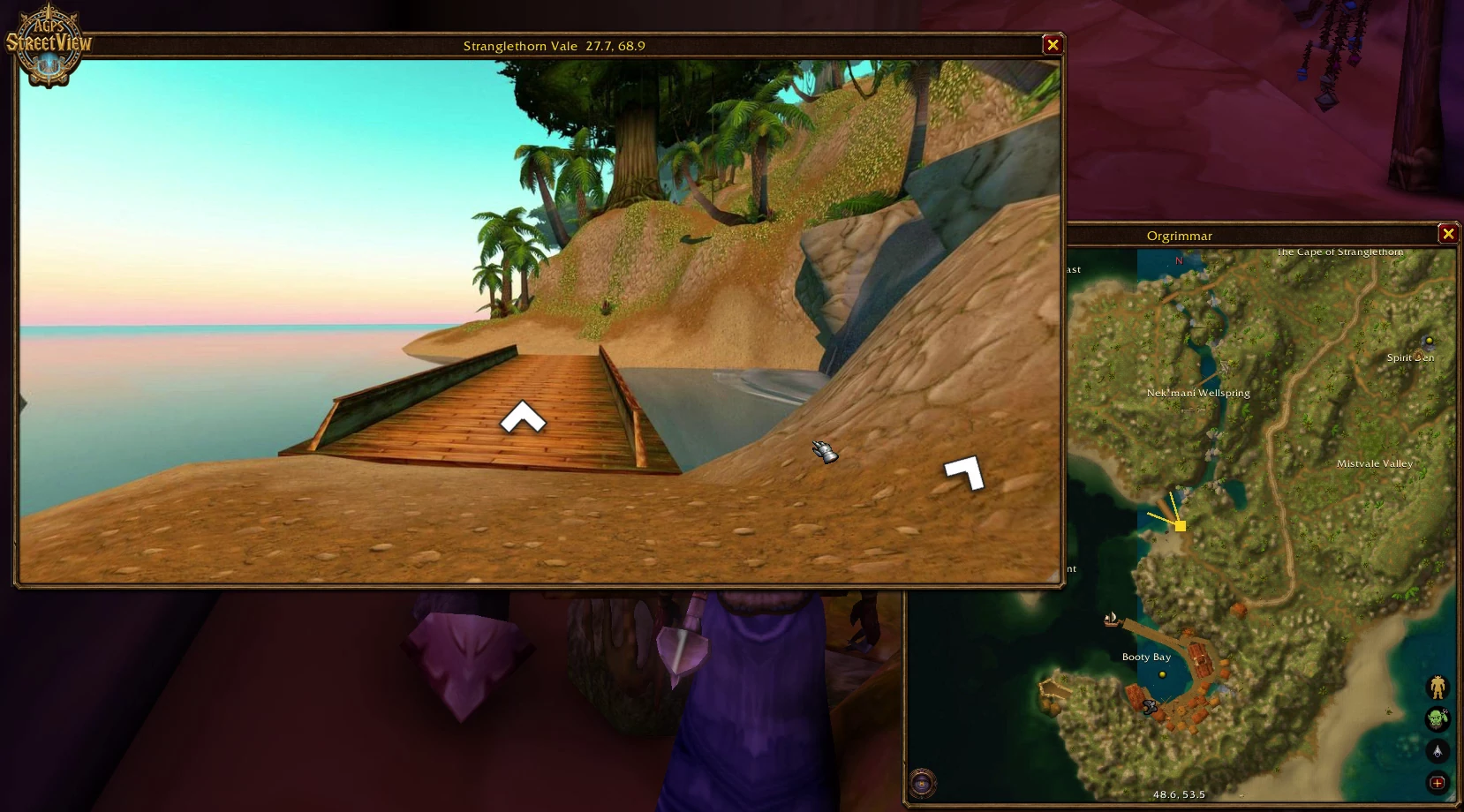
While a street view is open, the AzerothGPS map shows where you're standing and which way you're looking, and keeps up as you turn or walk. Walk with the arrows and the map moves along with you, centered on each spot. Close the street view and the map goes back to where it was before your first step. If you move the map yourself along the way, it stays where you put it.
Good to know#
- Every picture is a full 360-degree panorama rendered from the game world: about one every 200 yards along the roads, the streets of the cities and inside their buildings, a few dozen famous spots framed by hand, and every dungeon and raid boss.
- Left and right look swapped on your client?
/sv flipyawturns the views the other way.